
How to audit a page step by step with Search Toolbox

Search Toolbox
SEO / GEO Editorial
A page audit should answer three simple questions: can Google access the page, can it understand the page, and do its signals point to the correct URL? Here is the order to follow in Search Toolbox, without opening every tab at random.
Step 1 — Start from the correct URL
Open the page that actually has the problem: production, staging, localhost, a logged-in page or a parameterized URL. Let it finish loading, then record the URL shown by the browser.
Why? Because auditing the wrong variant produces a wonderfully tidy and completely useless diagnosis. Return to this exact URL after every change.
Step 2 — Check whether Google can keep the page
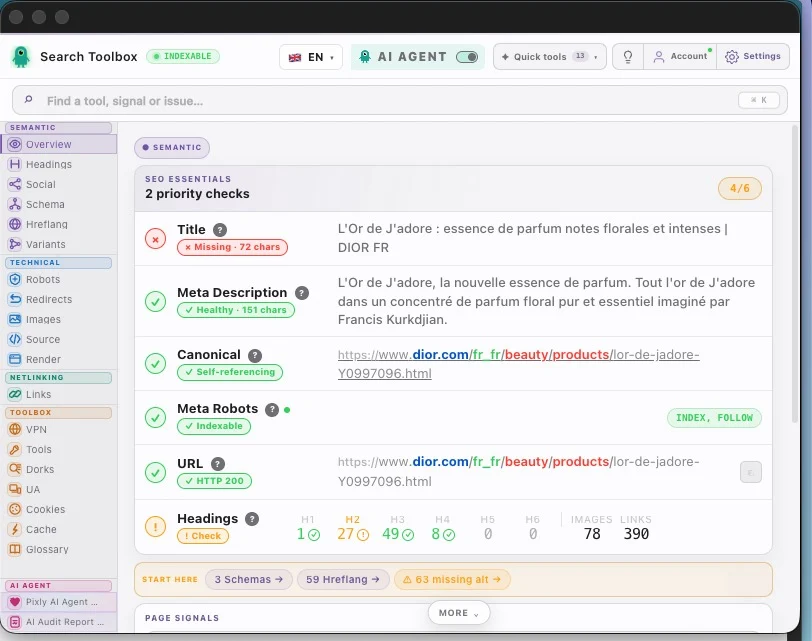
Open Overview and start with HTTP status, robots and canonical. In plain English: does the page respond, allow indexing and name the correct URL as its main version?
If you find noindex, a canonical pointing elsewhere or an HTTP error, stop here. Those are blockers. Optimizing images first would be choosing curtains while the house is on fire.
- Green: HTTP 200, index/follow and a coherent canonical.
- Then check that title, description and H1 describe the same topic.
- Urgent: a blocked, redirected or wrongly canonicalized page.
Step 3 — Read headings as the page outline
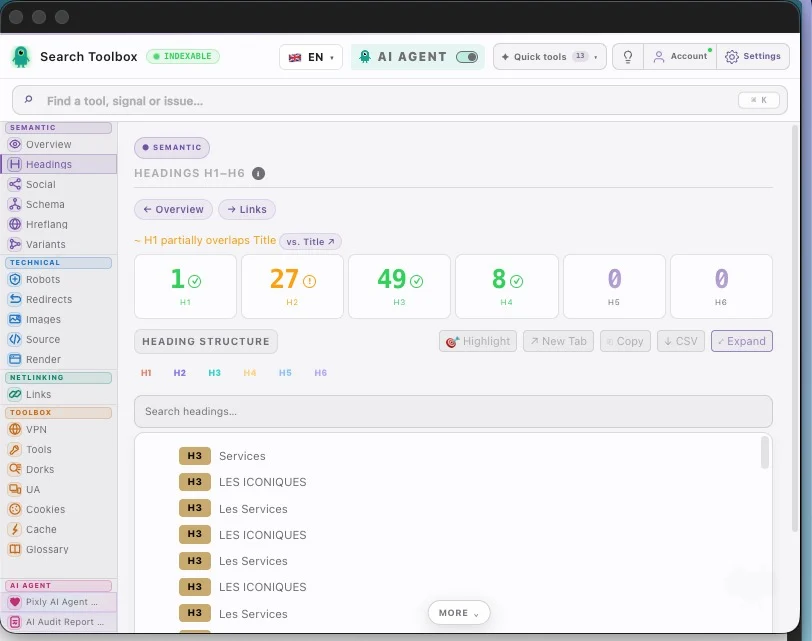
In Headings, read H1, H2 and H3 elements like a book outline. The H1 states the main topic, H2s divide the main sections and H3s expand them.
Here the tool shows 1 H1, 27 H2s, 49 H3s and 8 H4s. There is no magic target number; the goal is a structure people and search engines can follow without guessing.
Step 4 — Check where the links go
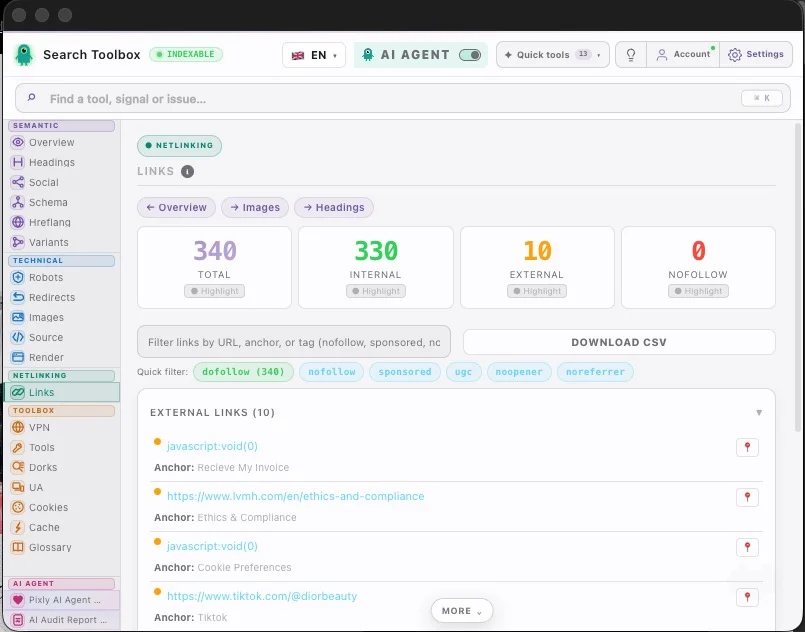
In Links, separate internal links from external ones. Then inspect anchor text: the clickable words should explain the destination instead of hiding behind “click here”.
The screenshot inventories 340 links: 330 internal, 10 external and no nofollow links. It proves what the Links panel checks without pretending to prove redirects or image alt text.
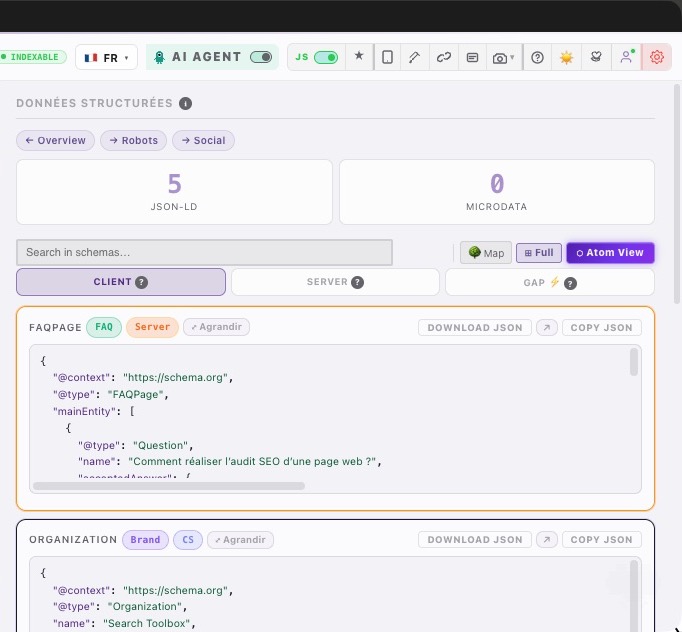
Step 5 — Check structured data in the current interface
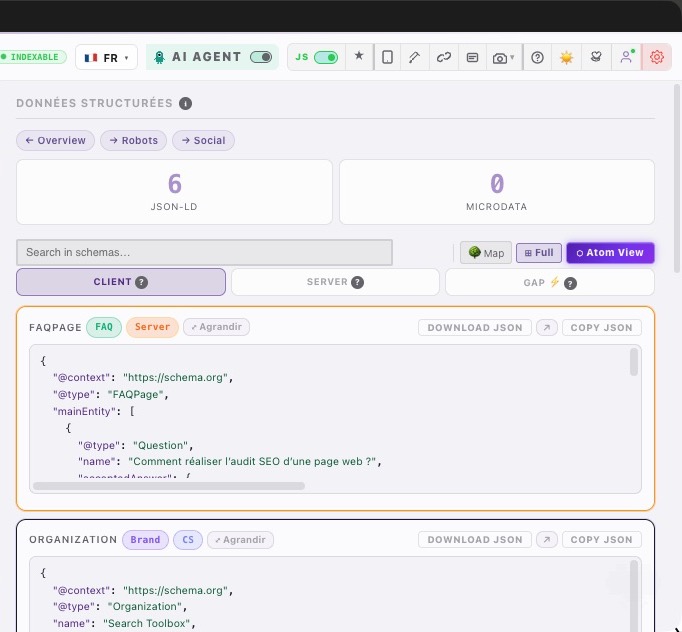
JSON-LD is a machine-readable description of the page. In Schema, inspect the detected types, review counts and breadcrumb depth directly on the audited page.
The first screen shows the Dior product page JSON-LD in the current Schema panel. The second returns to Overview to connect structured data with title, canonical and the other priority signals.
Step 6 — Check languages only for an international page
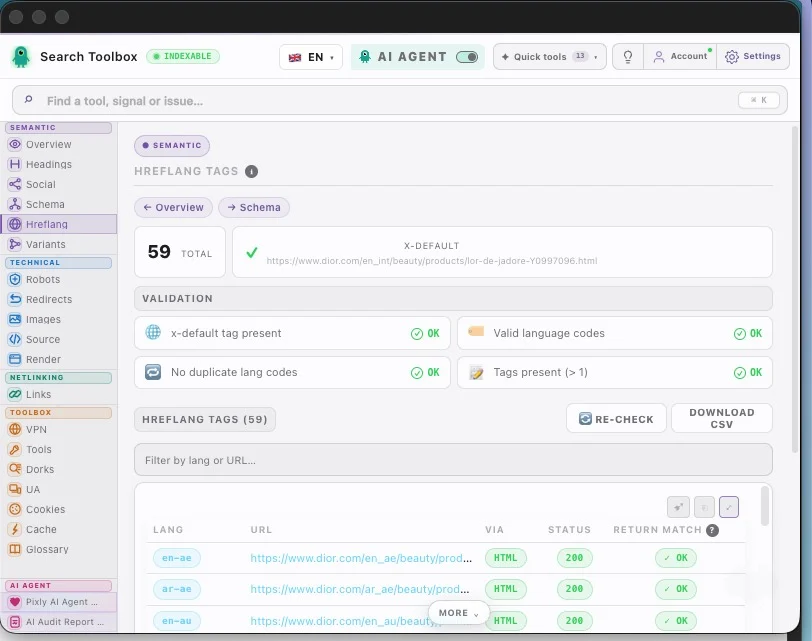
Hreflang connects language versions of the same content. Verify each language code, URL, HTTP response and return link.
The screenshot checks 59 annotations, an x-default target, their HTTP status and reciprocity. If your page has one language, skip this step: a good audit also knows when not to invent work.
Step 7 — Compare source and DOM only when needed
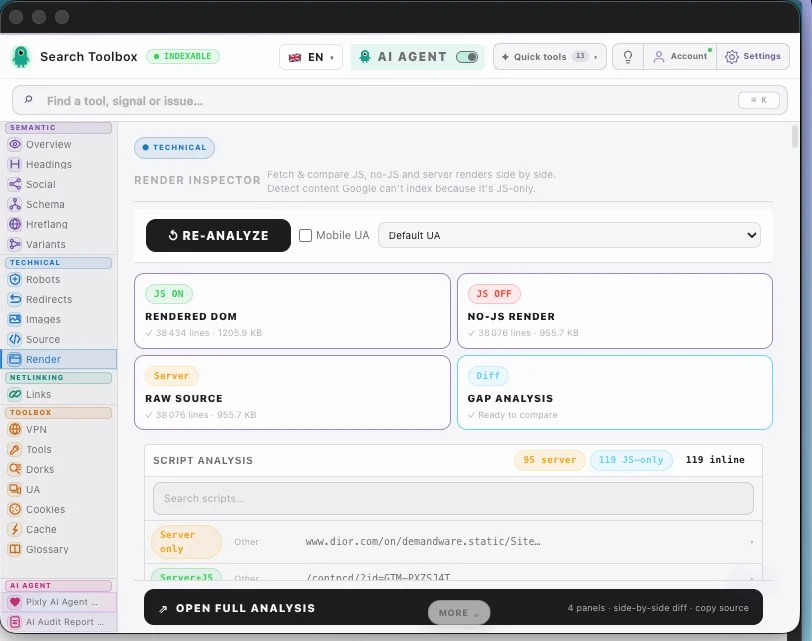
The rendered DOM is simply the final page after JavaScript has run. Do not start here: open Render only when a tag is missing, duplicated or inconsistent with Overview.
The panel compares the JavaScript-rendered DOM, the no-JS output and the raw server source, then prepares a detailed gap analysis. This deeper check explains a difference you have already found; it should not complicate the first minutes of the audit.
Step 8 — Fix in the right order, then retest
Sort findings into three groups: blocks indexing, weakens the SEO signal, improves reading comfort. Fix them in that order. Impact matters more than the raw warning count.
Change one thing, reload the page and repeat the relevant check. The AI agent can help sort findings, but it cannot turn a screenshot from another page into evidence. That is why this step deliberately shows no misleading visual.
Case-study result · July 20, 2026
What the audit of this page actually found
We applied the steps above to the page you are reading. Here is the result, kept separate from the screenshots so the method and the findings remain clear.
Access and indexability
HTTP 200, index/follow and a self-referencing canonical: no critical blocker.
Content structure
1 H1, 27 H2s, 49 H3s and 8 H4s. The outline is dense; the panel shows its real order.
Links and languages
340 links classified; 59 hreflang annotations checked for x-default, HTTP status and reciprocity.
Fixes completed
We shortened the title and removed the duplicate FAQPage, then retested both changes.
Search Toolbox · YouTube
Watch a complete audit directly inside Chrome
The walkthrough moves from the visual page to technical panels and finally to verifiable actions.
Search Toolbox · live panels
One audit, six angles of evidence
Each panel stays focused, but the diagnosis becomes useful when their signals are connected.

Swipe · tap to zoom
Focused audit · content
Check whether the page really answers the right intent
Page promise, headings, internal links and entities, without technical detours.
Focused audit · technical
Check technical blockers in the right order
HTTP, robots, canonical and redirects first; rendered DOM only when it becomes useful.
Learn SEO / GEO the practical way
Audit a page, tab by tab.
A guided route from first observation to verification. Open the lesson to learn the method, or jump to its tool and inspect the active page.
- Step 01You are here
Open the page and establish the baseline
Start on the live URL and record the final URL, HTTP response and indexability.
- Step 02
Check Overview, metadata and canonical
Resolve noindex, title, description, robots and canonical conflicts first.
- Step 03
Audit headings, links and images
Read the hierarchy, follow internal anchors and fix repeated image-template errors.
- Step 04
Validate schema and entity relationships
Inspect the rendered JSON-LD graph, required properties and conflicting entities.
- Step 05
Verify hreflang and localized URLs
Test reciprocity, language codes, canonicals and HTTP status across the cluster.
- Step 06
Trace redirects and URL variants
Follow every hop and confirm the final URL is indexable and self-canonical.
- Step 07
Understand SSR, CSR and the rendering risk
Learn what the server sends, what JavaScript adds and which differences deserve investigation.
- Step 08
Investigate source HTML and rendered DOM if needed
Use this deeper check only when simpler panels reveal a JavaScript-related contradiction.
- Step 09
Prioritize, export, fix and retest
Turn evidence into an ordered plan, change one thing, then rerun the same checks.
Apply it to your site
Guide read. Now choose the real use case.
These workflows apply the method to real CMS failure modes and show which page and Search Toolbox panel to inspect next.
WordPress SEO Audit Beyond the Plugin Dashboard
Themes, page builders and multiple plugins can duplicate or overwrite otherwise correct SEO settings.
Open workflowShopify SEO Audit for Product and Collection Pages
Variant URLs, duplicate product schema and inconsistent image data can scale across the entire catalog.
Open workflowUsing another CMS or looking for one specific check?
The directory brings every use case, free tool and troubleshooting guide together.

Stay in the loop
New SEO guides straight to your inbox
No spam. Just the important guides and product updates.
FAQ and related searches
Frequently asked questions
How do you audit a web page for SEO?
Start with crawlability and indexability, then check the canonical, robots directives, status code, title, description, headings, structured data, internal links, images and rendered HTML. Prioritize contradictions and blockers before cosmetic improvements.
What should an on-page SEO audit include?
A useful on-page audit includes search intent and content quality as well as technical evidence: metadata, heading structure, canonicalization, schema, image accessibility, link context and the final DOM after JavaScript runs.
Can a Chrome extension audit JavaScript-rendered pages?
Yes. A browser extension can inspect the live DOM after JavaScript executes and compare it with source HTML. This is especially useful for React, Next.js, staging environments and authenticated pages.