Indexability, title and meta description
Inspect the signal in the rendered page.

Search Toolbox helps you check what a published Wix page actually sends to search engines, one signal at a time, directly on the live page. The goal is a beginner-friendly diagnosis based on the public page, with one clear correction and a repeatable retest, without hiding the evidence behind one overall score.
Wix site owners, freelancers and beginners learning practical SEO
What you can verify
Inspect the signal in the rendered page.
Compare source code with the browser output.
Find contradictions that block indexation.
Export evidence your team can act on.
The observable problem
The useful outcome
CMS problems to diagnose
Wix exposes friendly SEO settings, but only the published page proves whether dynamic variables, custom canonicals and old slugs resolve correctly. Search Toolbox lets a beginner verify that output without reading the whole source.
What you observe
The page is visible to visitors but site-level settings, page settings or an X-Robots header still block indexing.
Inside Search Toolbox
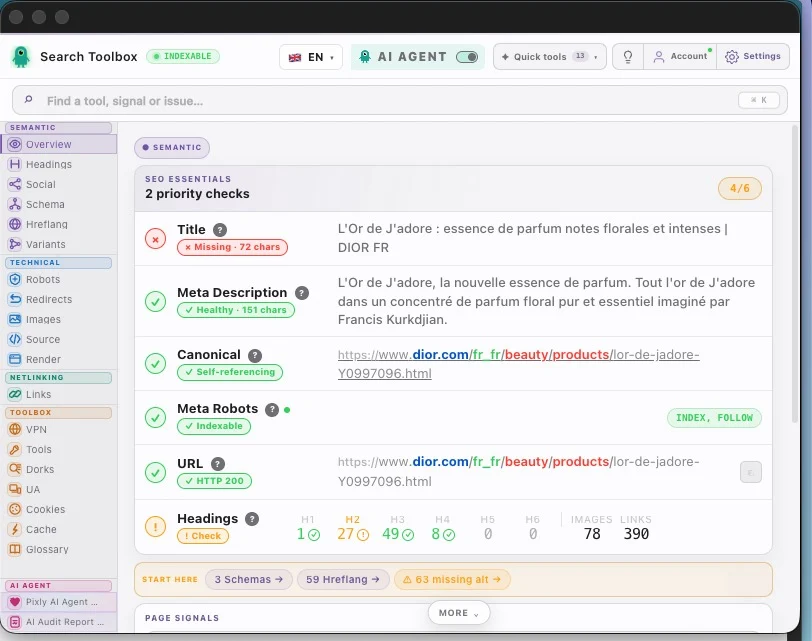
Open Overview and Robots. Confirm HTTP 200, index/follow, robots.txt access and a self-referencing canonical.
The useful decision
Correct the blocking setting, publish again and reload the public URL before requesting indexing.
What you observe
A collection variable may be empty or mapped to the wrong field, creating dozens of pages with the same metadata.
Inside Search Toolbox
Use Overview on three records from the same dynamic template. Compare title, description, H1 and canonical instead of trusting one preview.
The useful decision
Map each SEO field to a stable, meaningful collection value and keep a custom canonical only when consolidation is intentional.
What you observe
A renamed Wix page may pass through an old route, while apps or Velo code inject important content after the initial response.
Inside Search Toolbox
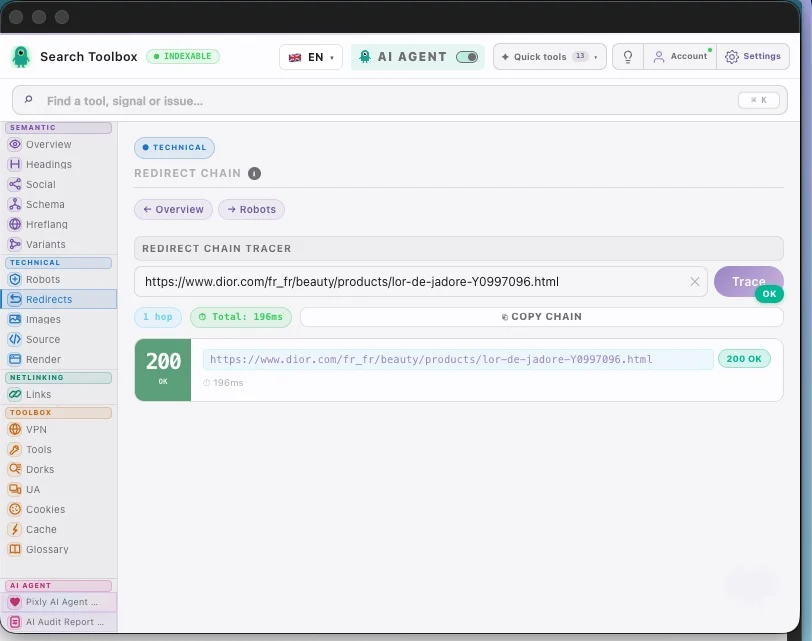
Check Redirects first. Open Render only when Overview, Headings or Links do not match what is visible on screen.
The useful decision
Keep one direct permanent redirect from the old slug, update menus and verify that essential content exists in the final DOM.
From finding to strategy
Use a small, repeatable sample instead of opening every page after every edit.
Keep one homepage, one static page, three dynamic records and one old slug in your test list.
After publishing, check Overview and Robots first; only continue to headings, links, schema or Render when the baseline is clean.
Save a Search Toolbox export before and after the change so a freelancer or agency can see exactly what moved.
Guides to open during this audit
Open the real page, run the named checks and keep before-and-after evidence. That is more useful than a score turning green without saying why.
Install for freeEvidence on the real page

Check the Wix SEO audit in the real session, staging environment or localhost — preferably the troublesome page, not the perfectly groomed demo.
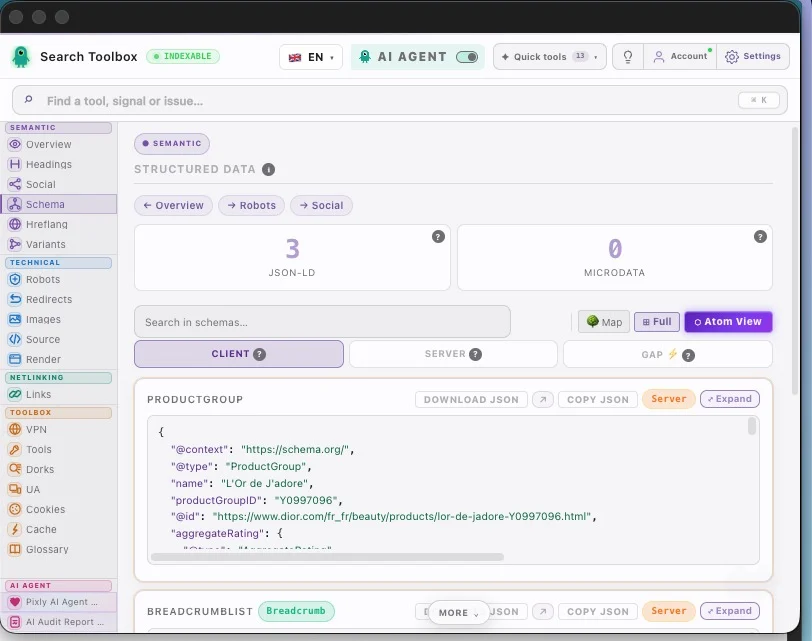
Check indexability, title and meta description, default or custom canonical, dynamic-page variables and structured data, old slugs, redirects and rendered html and connect signals that contradict each other.
Aim for a beginner-friendly diagnosis based on the public page, with one clear correction and a repeatable retest. Change one rule at a time, then repeat the exact same check so you know what actually moved.
For the Wix SEO audit, Search Toolbox inspects the active URL deeply. It is not a full-site crawler, backlink platform or rank tracker. Test several URLs when the issue comes from a template.
It is a useful starting point for business details, keywords, basic metadata and connecting Google Search Console. It does not replace checking the published page. After completing it, open a representative URL and verify indexability, title, description, canonical, headings and rendered structured data in the browser.
First confirm the site and page allow indexing. Then check the live robots directive, HTTP response, canonical URL, redirect path and sitemap presence. A page can be published for visitors but still send a noindex or canonical signal that asks search engines to choose another URL.
Test several dynamic items, not only the nicest one. Verify that each URL is unique and that variables produce a specific title, description, canonical and structured-data entity for that item. Repeated blanks or generic values usually indicate a page-type setting or collection-field problem.
Wix can create a 301 when many page slugs change, but there are exceptions and old migrations deserve a real test. Open the previous URL, trace every hop and confirm the final page returns 200, remains indexable and canonicalizes to itself instead of entering a chain or loop.
Usually not. Wix creates a default self-referencing canonical for pages. Customize it only when you understand which duplicate URL should consolidate into another page, then verify the published tag. A custom canonical can also affect whether that URL appears in the sitemap.
Yes. Search Toolbox reads the published page in Chrome and explains each signal without requiring access to the code. Its 60+ manual checks are free. Start with one important page, follow the beginner workflow, make one Wix setting change and run the same check again.
Manual checks for the Wix SEO audit are included in the 60+ free tools. Only the optional contextual SEO Expert uses credits.